
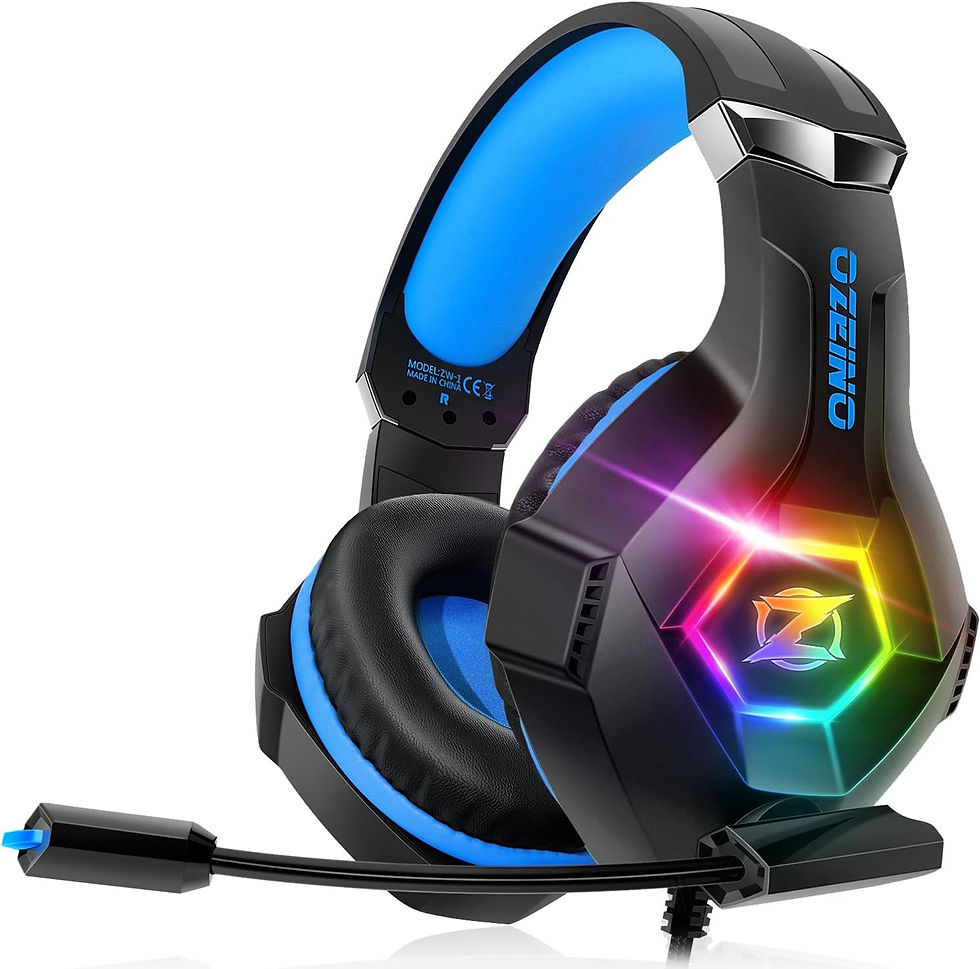

- 【7.1 Surround Sound for Positional Audio】If you want to hear your enemies motion in games, wearing a professional gaming headset does matters. Our gaming headset offers up to a 360-degree surround soundscape, adds a sense of realism to your gaming session. Perfect for various games like FIFA 22, GTA V, Star Wars Jedi: Fallen Order, Marvel's Avengers, Call of Duty, etc.
- 【Sensitivity Microphone for Clarity and Accuracy】The omnidirectional microphone captures the your voice yet eliminates unwanted background noise. If you wanna enjoy your valuable me-time without communicating with other players, you could turn off the mic by flipping the switch.
- 【Comfort is King】Soft leatherette ear cups and ergonomically padded headband allow for long gaming sessions without fatigue. Built for gamers who can’t have an uncomfortable headset ruin the flow of their full-combo, disrupt their speedrun, or knocking them out of the zone.
- 【Cool style Breathing RGB Lights】7 colors automatically converted LED Lights design on the earcups, custom-built for gamers, highlight game atmosphere. (Note: The USB connector is for LED lighting only)
- 【Versatile Compatibility】3.5mm interface Gaming headset for PC, Ps4, Ps5, Switch, Laptop, Mac, Smart Phone and any gaming device with 3.5mm jack, allowing you to enjoy unfair audio advantage across almost every platform
- Note 1: When you use headset on your PC, be sure to connect the "1-to-2 3.5mm audio jack splitter cable" (Red-Mic, Green-audio).
Product Description
Upgraded Professional Gaming Headset
-
How to make the mic get to work?
1) Connect the 1-to-2 jack splitter cable with the 3.5mm jack to work on PC.
2) Make sure insert the right jack (the pink for the microphone).
3)Adjust and rotate the 3.5mm interface until both sides of the headphones have smooth sound output.
-
How to light on the LED light?
The USB jack is help to light on the RGB light. If your device does not come with a USB jack, you can link the USB plug to a power bank or to a computer host or other USB charger.
-
How to connect PS4 PS5?
1.Insert the 3.5mm jack plug into the controller.
2.Press the ps4 button or enter the settings system, there is a options, choose "adjust audio and devices", "output to headphones", then change to "all audio ".
3.Suitable for ps4 ps5 xbox one pc mac.
-
How do I check if the microphone is on?
Please check that you have turned on the mute button, the microphone mute button is located in the headset in-line control position.
-
How to connect Xbox one?
1.Use the 3.5mm jack to connect the devices.
2.Check the Xbox settings to ensure set on the correct output mode.
3.Set on the mic input and volume.
3.Adjust volume of the headset.